

Microsoft’s Surface Book is engineered with a sophisticated dynamic fulcrum hinge and electronic locking mechanism that allows users to detach the display and use it as a tablet. While the mechanism is designed to work seamlessly, there are situations where the device may refuse to detach. This can happen due to low battery, software errors, firmware glitches, or hardware malfunctions. When that occurs, understanding how to force detach a Surface Book safely becomes essential to prevent damage.
TL;DR: If your Surface Book won’t detach normally, start by troubleshooting software issues, charging both batteries, and performing a proper shutdown. Use the manual emergency detach hole only as a last resort and follow precise steps to avoid damaging internal connectors. Never attempt to pry the screen off without activating the release mechanism. Carefully reattach and test functionality afterward to ensure long-term device health.
This guide provides a complete, step-by-step explanation of how to safely force detach your Surface Book while protecting your hardware and preserving its lifespan.
Understanding How the Surface Book Detach Mechanism Works
The Surface Book uses an electromechanical locking system located inside the hinge. When you press the detach button, a signal triggers internal pins to retract, releasing the clipboard (display) from the keyboard base.
Image not found in postmetaImportant facts about the mechanism:
- The clipboard (display) contains its own battery and processor.
- The base often contains a secondary battery and sometimes a discrete GPU.
- Both batteries must have sufficient charge to enable detachment.
- The detach button requires Windows to be functioning unless you use the manual release.
If any part of this system fails, electronic release may not activate — which is when users consider a forced detach procedure.
Common Reasons a Surface Book Won’t Detach
Before forcing anything, identify the cause. Attempting physical separation without diagnosis can damage internal connectors.
- Low clipboard battery
- Windows system freeze
- Outdated firmware
- GPU still in use by applications
- Mechanical debris inside hinge
In many cases, the issue is software-related and can be resolved without using the emergency release.
Step 1: Perform Standard Software Troubleshooting
Start with the least invasive solutions.
1. Fully Charge Both Batteries
Plug in your Surface Book and allow it to charge for at least 30 minutes. Even if the keyboard base battery is full, a drained clipboard battery can prevent detachment.
2. Close Intensive Applications
Programs using the discrete GPU may prevent detachment. Close:
- Video editing software
- 3D rendering applications
- High-end games
3. Perform a Proper Shutdown
If the system is unresponsive:
- Hold the Power button for 10–20 seconds.
- Wait 10 seconds.
- Restart the device.
4. Use Taskbar Detach Button
Click the detach icon in the Windows system tray instead of relying on the keyboard key.
If none of these methods work, proceed to the manual release method.
Step 2: Emergency Manual Detach Procedure
Warning: This method should only be used if electronic detachment fails. Performing it incorrectly can damage internal locking pins.
You will need:
- A paper clip (fully straightened)
- Good lighting
- A stable surface
Where to Find the Emergency Release Holes
Surface Book models include small, nearly invisible emergency release holes beneath the hinge area.
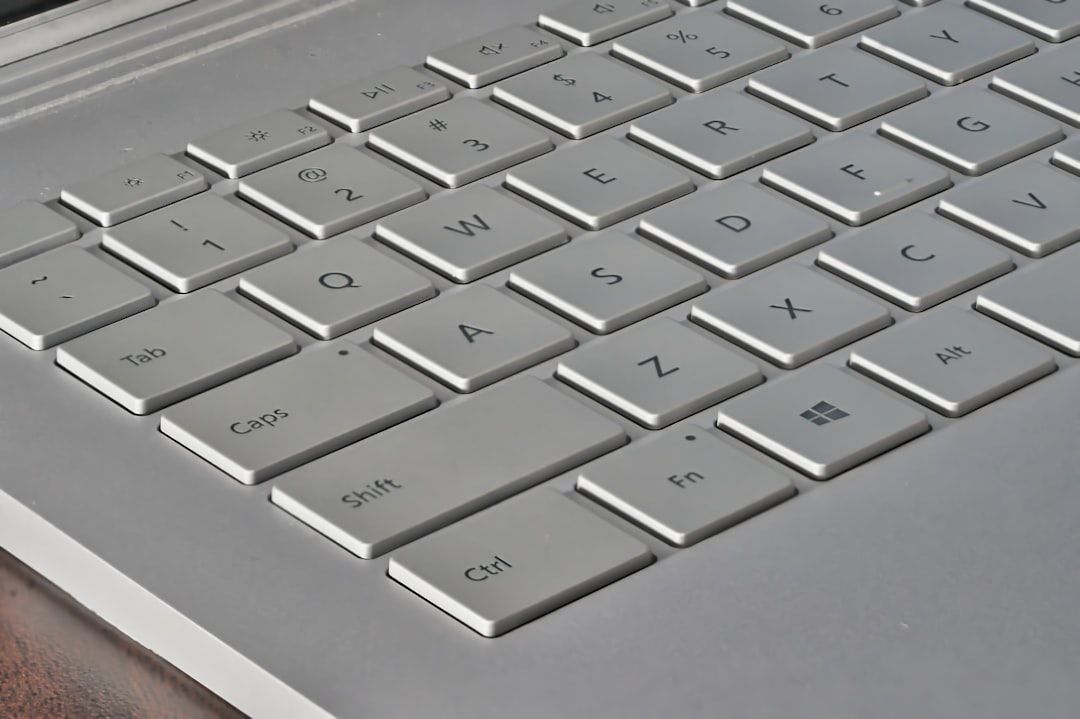
These align with the mechanical lock pins that secure the display.
Manual Detach Steps
- Power off the Surface Book completely.
- Close the device.
- Turn it sideways to locate the small release holes along the hinge.
- Insert the straightened paper clip gently into one hole until you feel resistance.
- Apply light pressure to release one side.
- Repeat the process on the opposite side.
- Carefully lift the display away from the base.
Do not pry or twist the display. If resistance is strong, stop immediately. Excessive force can bend alignment rails or break locking actuators.
Tools Comparison for Manual Detach
If you do not have a paper clip, alternative thin metal tools may work. Choosing the correct tool is critical.
| Tool | Safety Level | Effectiveness | Risk of Damage |
|---|---|---|---|
| Standard Paper Clip | High | Excellent | Low |
| SIM Card Ejector Tool | High | Excellent | Low |
| Sewing Needle | Medium | Moderate | Medium |
| Thumbtack | Low | Poor | High |
Recommendation: Use a paper clip or SIM tool only. Avoid sharp, brittle, or oversized objects.
Step 3: Inspect the Components After Detaching
Before reconnecting the device, visually inspect both sections.
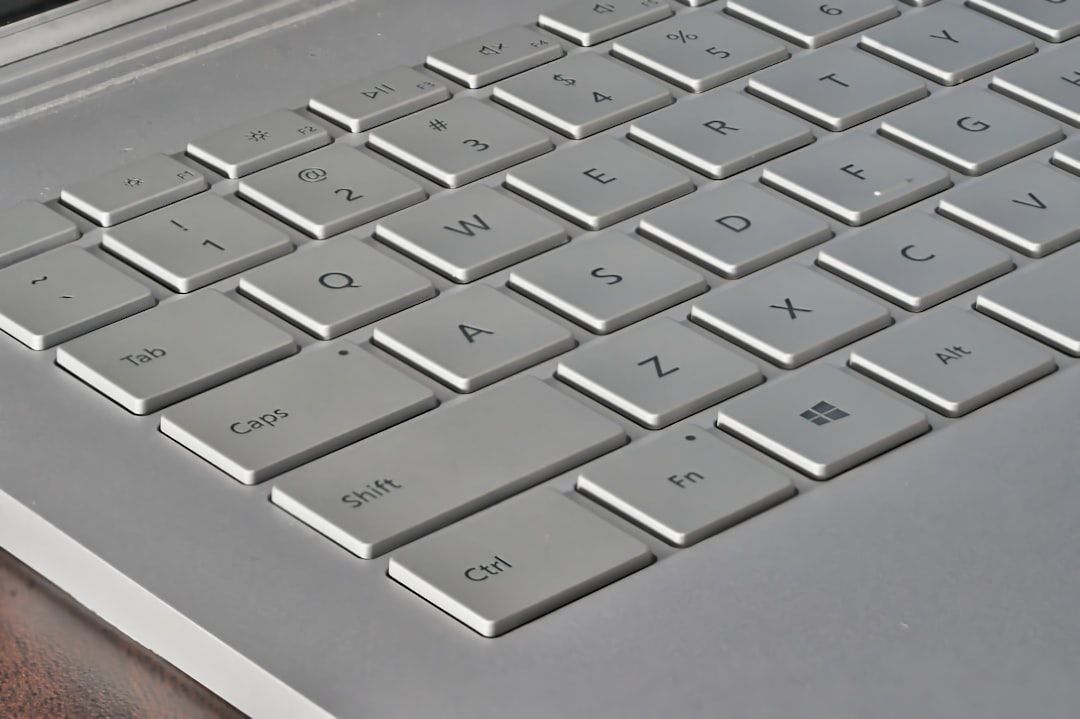
- Check for bent or misaligned metal connectors.
- Look for dust or debris inside hinge rails.
- Ensure magnetic alignment guides are intact.
If damage is visible, avoid reattaching and consult a certified technician.
Step 4: Reattach Correctly
Improper reattachment can cause:
- Battery recognition errors
- GPU detection failure
- Loose hinge alignment
To reattach safely:
- Align the display evenly with the hinge.
- Lower it gently into position.
- Wait for the audible click.
- Power on the device.
- Confirm keyboard and GPU functionality.
When You Should NOT Force Detach
In certain situations, forcing detachment is not recommended:
- If the hinge is physically bent
- If liquid damage is suspected
- If the device is under active warranty repair consideration
- If you hear grinding noises from the hinge
Using the emergency method under these circumstances may void warranty or worsen the issue.
Firmware and Driver Prevention Tips
Surface Books are highly firmware-dependent. Prevent future detachment failures by:
- Installing Windows updates regularly
- Updating Surface firmware via Microsoft Surface app
- Avoiding forced shutdowns whenever possible
- Keeping battery levels above 15%
System maintenance significantly reduces electronic release failures.
Signs You Need Professional Repair
Seek service if you notice:
- Detach button blinking red continuously
- Clipboard battery not charging
- Display wobbling after reattachment
- Repeated hardware recognition failures
Certified Microsoft technicians are equipped to recalibrate or replace hinge lock components safely.
Final Safety Considerations
The Surface Book is a precision-engineered device. The detach system relies on careful electronic coordination between internal components. Forcing separation without following the correct steps can:
- Damage connection ports
- Bend mechanical release pins
- Compromise battery communication
- Invalidate warranty coverage
Always exhaust all software options before proceeding to the manual release method. When using the emergency hole technique, apply controlled pressure and remain patient.
Conclusion
Knowing how to force detach a Surface Book safely can save you from frustration and prevent irreversible damage. While electronic detachment is designed to function reliably, occasional failures do occur. By first troubleshooting software, fully charging the device, and only using the manual release as a last resort, you significantly reduce the risk of harm.
The key is patience and precision. Avoid shortcuts, never pry the device apart, and take time to inspect components before reassembly. Treated correctly, the Surface Book’s detach mechanism will continue to perform as intended for years to come.
