


Discord is one of the most popular platforms for voice, video, and screen sharing, but crashes during screen sharing can quickly ruin a meeting or gaming session. These crashes can happen on both Windows and Mac due to outdated drivers, hardware acceleration conflicts, corrupted cache files, or incorrect system permissions. Fortunately, most issues can be resolved with a few targeted troubleshooting steps.
TLDR: Discord crashes when sharing the screen are usually caused by outdated graphics drivers, hardware acceleration conflicts, corrupted cache, or incorrect permissions. Updating the app and GPU drivers, disabling hardware acceleration, and clearing Discord’s cache often fix the issue. On Macs, granting proper screen recording permissions and updating macOS are critical steps. If all else fails, reinstalling Discord or switching to the web version can serve as a temporary workaround.
Why Discord Crashes During Screen Sharing
Before diving into solutions, it helps to understand the most common causes behind Discord crashing when sharing a screen:
- Outdated Discord version with compatibility bugs
- Old or corrupted graphics drivers
- Hardware acceleration conflicts
- Insufficient system resources (RAM or CPU)
- Improper screen recording permissions (Mac)
- Corrupted Discord cache files
Identifying the root cause narrows down the fix significantly. In many cases, the issue stems from graphics rendering conflicts or system-level permission settings.
Fix Discord Crashing on Windows
1. Update Discord
Running an outdated version of Discord can lead to bugs that cause crashes during screen sharing.
- Close Discord completely (including from the system tray).
- Press Windows + R and type %localappdata%.
- Open the Discord folder and launch Update.exe.
This forces Discord to check for and install new updates.
2. Update Graphics Drivers
Screen sharing relies heavily on the GPU. Outdated drivers frequently cause crashes.
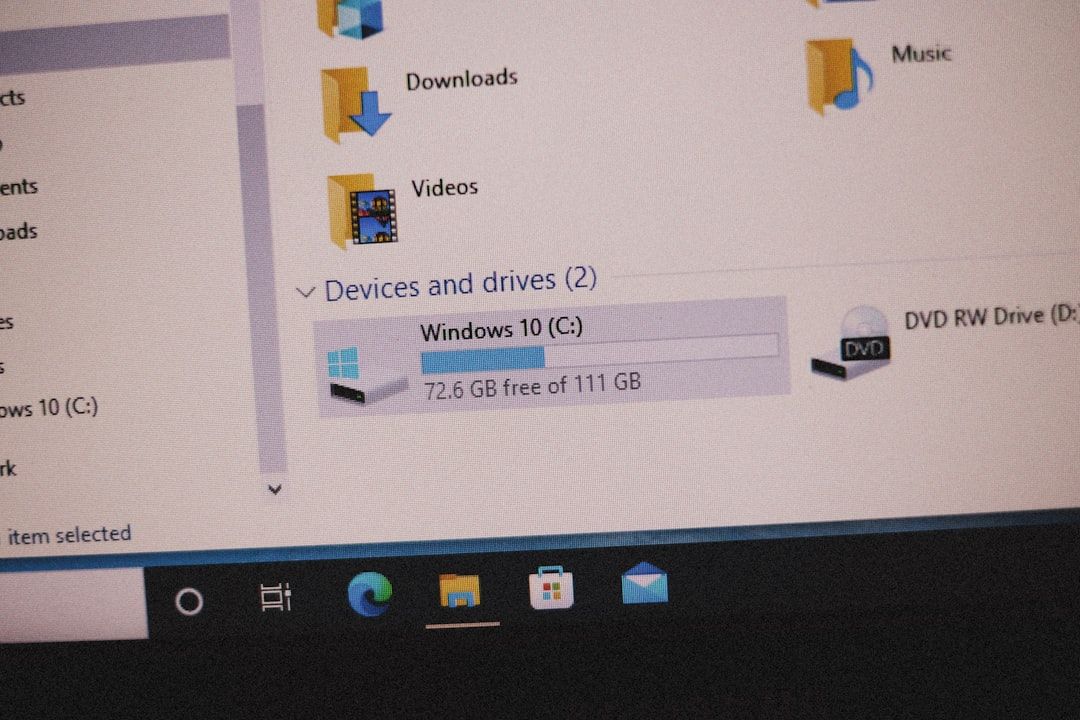
To update:
- Right-click Start and select Device Manager.
- Expand Display adapters.
- Right-click your GPU and select Update driver.
For best results, download drivers directly from NVIDIA, AMD, or Intel websites.
3. Disable Hardware Acceleration
Hardware acceleration improves performance but may conflict with certain GPUs.
- Open Discord.
- Click User Settings (gear icon).
- Navigate to Advanced.
- Toggle off Hardware Acceleration.
Restart Discord after changing this setting.
4. Clear Discord Cache
Corrupted cache data often leads to application instability.
- Press Windows + R and type %appdata%.
- Delete the Discord folder.
- Repeat with %localappdata%.
Reopen Discord to regenerate fresh files.
5. Run Discord as Administrator
Limited permissions can interfere with screen capture.
- Right-click the Discord shortcut.
- Select Run as administrator.
This ensures Discord can fully access system resources.
6. Disable Conflicting Applications
Software like OBS, antivirus programs, or GPU overlays (GeForce Experience, Xbox Game Bar) can interfere with screen sharing.
- Temporarily disable overlays.
- Turn off third-party antivirus software.
- Close unused background apps via Task Manager.
Fix Discord Crashing on Mac
1. Grant Screen Recording Permissions
macOS requires explicit permission for screen recording.

- Open System Settings.
- Go to Privacy & Security.
- Select Screen Recording.
- Ensure Discord is enabled.
If Discord is already checked, uncheck and recheck it, then restart your Mac.
2. Update macOS
Compatibility issues between Discord and older macOS versions may cause crashes.
- Go to System Settings > General > Software Update.
- Install any pending updates.
3. Disable Hardware Acceleration
The steps mirror the Windows instructions:
- Open Discord settings.
- Go to Advanced.
- Turn off Hardware Acceleration.
- Restart the app.
4. Clear Discord Cache on Mac
- Open Finder.
- Click Go > Go to Folder.
- Type ~/Library/Application Support/discord.
- Delete cache-related folders.
This removes corrupted temporary files.
5. Reinstall Discord
If crashes persist:
- Drag Discord to the Trash.
- Download the latest version from the official website.
- Reinstall and log back in.
Advanced Troubleshooting Tips
Check System Resource Usage
High CPU or RAM usage may force Discord to crash.

- On Windows: Open Task Manager (Ctrl + Shift + Esc).
- On Mac: Open Activity Monitor.
If resources exceed 80–90%, close demanding applications before screen sharing.
Switch to Legacy Capture Mode
Inside Discord:
- Go to Settings > Voice & Video.
- Enable Use our latest technology to capture your screen (toggle it off if already enabled).
This switches capture methods and may stabilize the app.
Try the Discord Web Version
If the desktop app continues to crash, temporarily use Discord Web in Chrome or Edge. While performance may vary, it often bypasses desktop-specific conflicts.
Troubleshooting Comparison Chart
| Fix | Windows | Mac | Difficulty | Effectiveness |
|---|---|---|---|---|
| Update App | Yes | Yes | Easy | High |
| Update Graphics Drivers | Yes | Limited | Medium | High |
| Disable Hardware Acceleration | Yes | Yes | Easy | Medium to High |
| Clear Cache | Yes | Yes | Medium | Medium |
| Grant Screen Recording Permission | No | Yes | Easy | High |
| Reinstall Discord | Yes | Yes | Medium | High |
Preventing Future Crashes
Preventative maintenance can reduce the chances of Discord crashing during screen sharing:
- Keep Windows/macOS updated.
- Regularly update GPU drivers.
- Avoid running multiple screen capture tools simultaneously.
- Restart Discord before long screen-sharing sessions.
- Use wired internet instead of unstable WiFi when possible.
Routine system optimization not only stabilizes Discord but also improves overall device performance.
FAQ
Why does Discord crash immediately when starting screen share?
This usually happens due to outdated graphics drivers or hardware acceleration conflicts. Updating GPU drivers or disabling hardware acceleration typically resolves the issue.
Does hardware acceleration cause Discord to crash?
Yes, in some cases. While hardware acceleration boosts performance, it can conflict with certain GPU configurations and cause instability during screen sharing.
Why does Discord crash only on one specific app or game?
Some games use exclusive fullscreen modes or anti-cheat systems that conflict with Discord’s capture method. Switching the game to borderless window mode can fix this issue.
How do Mac users fix screen sharing permissions?
Go to System Settings > Privacy & Security > Screen Recording and ensure Discord is enabled. Restart the Mac after making changes.
Will reinstalling Discord delete servers or messages?
No. Discord accounts and servers are cloud-based. Reinstalling the app does not delete personal data.
Is the web version of Discord better for screen sharing?
It can be more stable on some systems, especially if desktop-specific conflicts cause crashes. However, the desktop version generally offers better performance and features.
Can low RAM cause Discord to crash?
Yes. If the system runs low on memory while sharing a screen, Discord may freeze or shut down. Closing background apps usually solves this.
By following these step-by-step solutions, most users can eliminate Discord crashes during screen sharing and enjoy smoother communication sessions on both Windows and Mac.
