


Creating inclusive learning experiences is no longer a niche goal—it is an essential part of modern education. Today’s classrooms are incredibly diverse, including students with different learning styles, language backgrounds, cognitive abilities, and physical needs. Fortunately, technology has made it easier than ever for educators to design content that is flexible, accessible, and engaging for everyone. From captioning tools to interactive design platforms, online solutions can help remove barriers and empower every learner to succeed.
TLDR: Accessible content ensures that all learners, including those with disabilities or language barriers, can fully participate in education. A variety of online tools now help educators design inclusive materials with captions, readable text, interactive elements, and adaptable formats. This article explores seven powerful platforms that simplify accessibility while enhancing engagement. A comparison chart is included to help you quickly evaluate which tool fits your needs.
Accessibility in education goes beyond compliance. It’s about applying principles such as Universal Design for Learning (UDL), which encourages multiple means of representation, engagement, and expression. Whether you teach online, in a blended classroom, or face-to-face, the following tools can dramatically improve the reach and impact of your instructional materials.

1. Canva for Education
Best for: Designing visually accessible presentations, worksheets, and infographics.
Canva for Education is more than a graphic design tool. It includes built-in accessibility features such as alt text fields for images, high-contrast templates, and easy-to-read font pairings. Educators can create visually engaging materials while ensuring they are usable for students with visual impairments or reading difficulties.
Why it stands out:
- Customizable templates with clear layouts
- Alt text support for screen readers
- Captioning options for video exports
- Collaboration tools for group accessibility projects
Canva also allows teachers to maintain consistent formatting, which helps students with executive functioning challenges navigate content more easily.
2. Microsoft Immersive Reader
Best for: Supporting reading comprehension and language accessibility.
Microsoft Immersive Reader is integrated into tools like OneNote, Word, and Teams. It transforms text into a customizable reading experience. Students can adjust font size, spacing, background color, and even enable line focus to reduce distractions.
Key accessibility features:
- Text-to-speech with adjustable speed
- Syllable breakdown and grammar highlighting
- Picture dictionary for vocabulary support
- Translation into multiple languages
This tool is especially valuable for English language learners and students with dyslexia. By giving students control over how they consume text, educators foster independence and confidence.
3. Google Workspace Accessibility Tools
Best for: Collaborative and accessible document creation.
Google Docs, Slides, and Forms come equipped with built-in accessibility checkers, voice typing, and screen reader compatibility. Since many schools already use Google Workspace, these tools are both practical and familiar.
- Automatic captioning in Google Slides
- Voice typing for students who struggle with writing
- Accessible commenting and suggestion features
- Compatibility with third-party screen readers
Teachers can also run accessibility checks before distributing materials, ensuring that headings, color contrast, and alt text meet best practices.
4. Otter.ai
Best for: Real-time transcription and lecture accessibility.
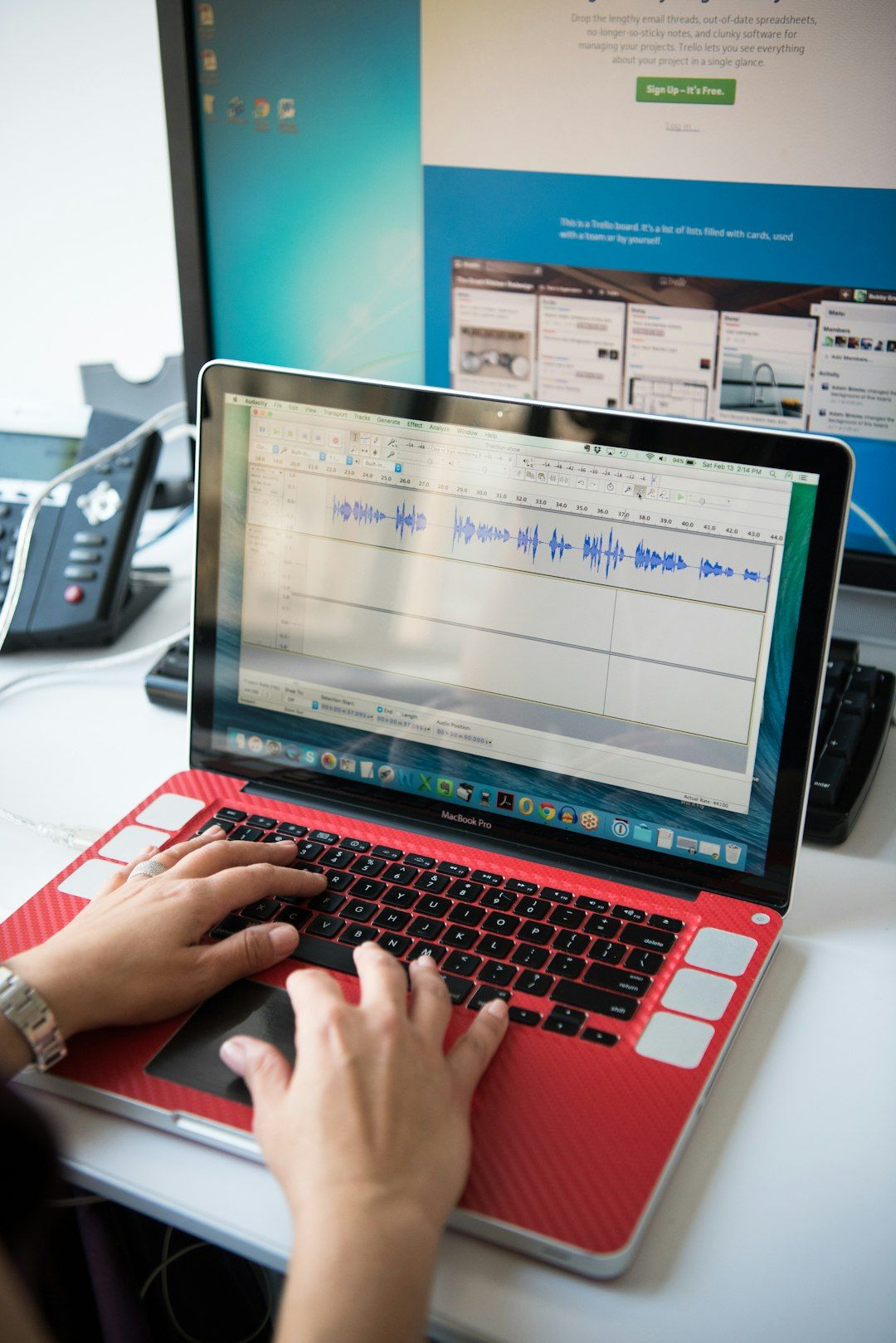
Otter.ai records and transcribes spoken content into accurate, searchable text. This is particularly useful for students who are deaf or hard of hearing, as well as for those who benefit from reviewing written notes after class.
Benefits include:
- Live captioning during lectures
- Searchable transcripts
- Speaker identification
- Easy export to multiple formats
Providing transcripts of lectures ensures that no student misses important content due to hearing challenges or language processing differences.
5. Book Creator
Best for: Multimedia storytelling with built-in accessibility.
Book Creator allows educators and students to design interactive digital books that incorporate text, audio, video, and images. The platform supports read-aloud features, captioning, and screen reader compatibility.
What makes it powerful:
- Audio narration recording
- Closed caption options
- Multiple language support
- Simple navigation interface
This tool empowers students to express understanding in multiple formats, supporting learners who may struggle with traditional written assignments.
6. Adobe Express
Best for: Creating accessible multimedia content.
Adobe Express offers accessibility-conscious design templates, automatic captioning for videos, and flexible export options. Its intuitive drag-and-drop interface enables educators to build visually appealing content without sacrificing readability.
Notable features:
- High-contrast design templates
- Video auto-captioning
- Mobile-friendly content creation
- Easy resizing for multiple devices
Adobe Express makes it simple to produce polished content that remains inclusive across devices and learning platforms.
7. Read&Write by Texthelp
Best for: Comprehensive literacy and accessibility support.
Read&Write is a robust literacy support tool that integrates with web browsers and learning management systems. It offers text-to-speech, vocabulary support, and screen masking features to reduce distraction.
Core capabilities:
- Text-to-speech with highlighting
- Word prediction and dictation tools
- Screen masking for focus
- Audio maker for converting text into MP3 files
This tool is widely used in special education settings but benefits any learner who needs additional support with reading and writing tasks.

Comparison Chart: 7 Accessible Content Creation Tools
| Tool | Primary Function | Key Accessibility Features | Best For |
|---|---|---|---|
| Canva for Education | Visual design | Alt text, high contrast templates, caption support | Presentations and worksheets |
| Microsoft Immersive Reader | Reading support | Text to speech, translation, grammar highlighting | Reading comprehension |
| Google Workspace | Document collaboration | Accessibility checker, voice typing, captions | Collaborative assignments |
| Otter.ai | Transcription | Live captions, searchable transcripts | Lectures and discussions |
| Book Creator | Digital publishing | Read aloud, multimedia support | Student storytelling |
| Adobe Express | Multimedia creation | Auto captions, accessible templates | Video and social content |
| Read&Write | Literacy assistance | Text to speech, dictation, word prediction | Reading and writing support |
Why Accessibility Benefits Everyone
Accessible content is often associated with accommodations, but in reality, it improves learning outcomes for all students. Captions help students review complex material. Clear layouts and readable fonts reduce cognitive load. Audio options support multitasking and reinforcement. When educators design with accessibility in mind from the beginning, they reduce the need for retroactive adjustments.
Moreover, these tools promote learner autonomy. Students can choose how they engage with content—reading, listening, watching, or interacting—creating a more personalized educational experience.
Practical Tips for Getting Started
- Run accessibility checks before publishing materials.
- Always add alt text to meaningful images.
- Use high color contrast between text and background.
- Provide transcripts for video and audio content.
- Offer materials in multiple formats whenever possible.
Even small adjustments, such as using descriptive link text instead of “click here,” can significantly improve navigation for screen reader users.
Final Thoughts
In today’s educational landscape, accessibility is both a responsibility and an opportunity. The tools highlighted above simplify inclusive design without requiring advanced technical skills. By integrating platforms like Canva, Immersive Reader, Google Workspace, Otter.ai, Book Creator, Adobe Express, and Read&Write, educators can ensure their materials support the widest possible range of learners.
Ultimately, accessible content fosters equity, engagement, and empowerment. When all students can access and interact with learning materials effectively, everyone benefits—and that is the true goal of education.
