
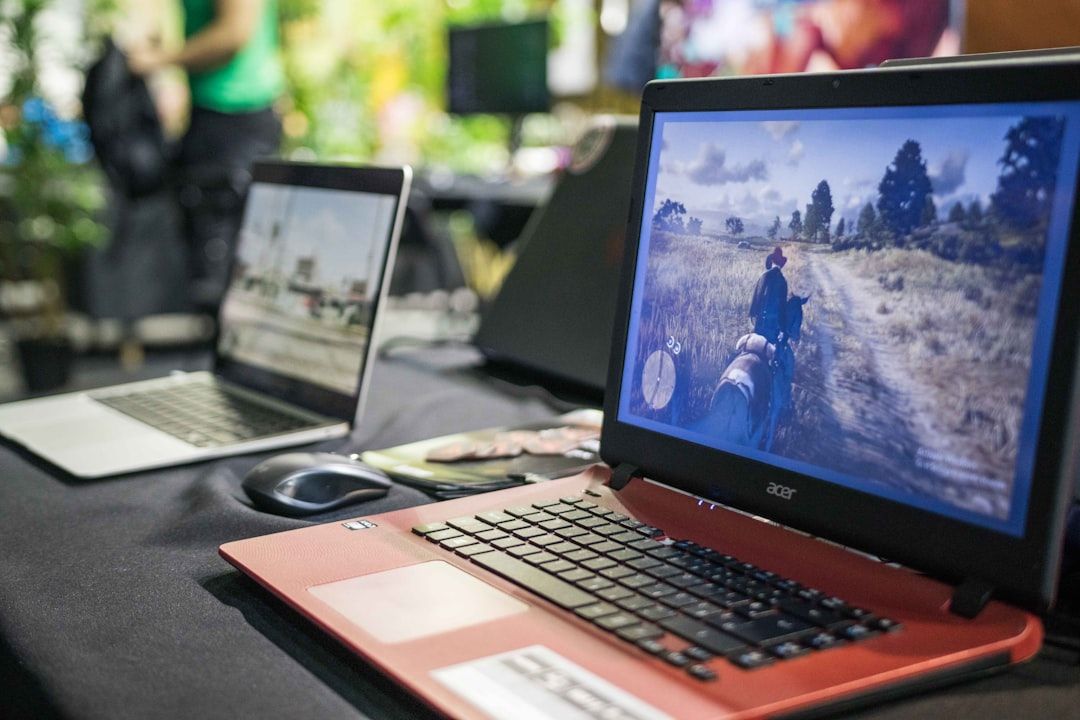

Few things are more frustrating for a World of Warcraft player than staring endlessly at a frozen loading screen. Whether you’re trying to log into a dungeon, hearth back to your capital city, or join a fresh battleground, nothing kills the excitement faster than a loading bar that just won’t budge. Fortunately, there are practical steps you can take before smashing alt+F4. Let’s walk through what you can do if you find yourself stuck waiting for Azeroth to load.
TLDR
If you’re stuck on a World of Warcraft loading screen, don’t panic just yet. This issue can usually be traced back to outdated addons, corrupted cache files, unstable internet, or driver issues. Try updating your addons, resetting your UI, or adjusting graphics settings. If the problem persists, network-related fixes or a clean reinstall may help.
1. Common Causes of WoW Loading Screen Freezes
When World of Warcraft gets trapped on a loading screen, it’s usually the result of either a local issue on your device or something interfering with the game data. Below are the frequent culprits:
- Outdated or incompatible addons: One of the most overlooked causes, especially after a major game patch.
- Corrupted cache or WTF files: These can cause instability or conflict at startup.
- Graphics driver issues: Improper GPU driver versions or corrupted shaders can freeze the game mid-load.
- Network instability: High ping, packet loss, or certain firewall settings can stop the game from loading data from the server.
- Running background software: Antivirus, overlays (like Discord, NVIDIA), or recording tools might affect loading integrity.
2. First Response: Quick Exit and Restart
Before jumping into deep diagnostics, try the simplest fix: restart your game client. If you’re in a frozen screen for longer than 60 seconds, safely exit by pressing Alt + F4 or using your task manager. Log back in and see if the issue repeats. Frequent disconnections during login attempts may indicate a corrupted file or broken addon.
3. Check Addons and Interface Files
Addons are an incredibly common source of problems, particularly when they haven’t been updated to work with the latest patch. Start with disabling all addons to see if the issue persists.
- Exit WoW completely.
- Navigate to your installation folder, usually located at C:\Program Files (x86)\World of Warcraft\_retail_\.
- Rename these folders:
- Interface to Interface_old
- WTF to WTF_old
- Cache to Cache_old
- Restart the game and try logging in.
If your loading screens work fine after this, one of your addons or saved settings caused the issue. Carefully reintroduce your addons one by one to isolate the conflict.
4. Network Check: Getting Past Data Freezes
Sometimes the game is waiting for a server response and your connection is at fault. You’ll want to rule out a weak or unstable network before going deeper.
- Run a Speed Test to check your download/upload speeds and ping.
- Restart your router — it’s basic, but surprisingly effective.
- Use a wired Ethernet connection instead of Wi-Fi if possible.
- Temporarily disable firewalls or VPNs to see if they interfere with WoW.
- In Battle.net Settings, go to Network Settings and uncheck “Use Peer-to-Peer” if enabled.
Consistently slow loading after a server hop or zone transition often points to bandwidth bottlenecks or packet loss. You can use tools like WinMTR to monitor connection stability to Blizzard’s servers.
5. Optimize Graphics and Display Settings
If your screen gets stuck immediately after you click “Enter World”, you may have incompatible display settings especially after a GPU driver update.
- Launch World of Warcraft without DirectX 12. Use DirectX 11 or 11 Legacy from the Battle.net launcher > Settings > Game Settings > Additional command line arguments.
- Add:
-d3d11 - Set your graphics to Low or Recommended Defaults in the options menu.
- Disable Ray Tracing, Anti-Aliasing, and reduce View Distance.
Getting stuck mid-load may mean your system is trying to render too many visual effects too quickly, leading to a GPU hang or crash.
6. Update or Roll Back Drivers
Incompatibility with certain driver versions is another source of loading hangs. Check your GPU driver status:
- Open Device Manager > Display Adapters.
- Right-click your GPU and choose Update driver.
- Alternatively, go to the manufacturer’s site: NVIDIA or AMD and download the latest stable version.
- If the issue began after a driver update, roll back by selecting “Properties” > “Driver” > “Roll Back Driver”.
Use Display Driver Uninstaller (DDU) in safe mode to do a clean uninstall if needed, followed by a fresh install of the driver package.

7. System Resource Conflicts and Background Apps
Certain applications can conflict with WoW and slow the loading process. Disable unnecessary startup tasks and overlays:
- Close Discord Overlay, NVIDIA ShadowPlay, Overwolf, or any FPS counter tools.
- Temporarily turn off antivirus shields (ensure you know the risks).
- Run the game in Administrator mode.
- Make sure WoW is added to your firewall and antivirus exceptions list.
8. Rare But Serious: Corrupted Game Files
If all else fails, consider the possibility that your WoW files are corrupted or incomplete. Try the built-in Scan and Repair tool from the Battle.net client:
- Open Battle.net and select World of Warcraft.
- Click the gear icon next to the Play button.
- Choose Scan and Repair.
- Let the client examine your installation and fix issues.
If problems persist even after this, a full reinstall may be required. Be sure to back up your WTF and Interface folders first if you wish to keep custom settings.
9. Reach Out to the Pros
Honestly, Blizzard Support has seen it all. If you’ve tried clearing cache, resetting addons, stabilizing your network, and managing your drivers without success — it’s time to reach out.
- Visit: https://support.blizzard.com/
- Submit a detailed support ticket with system specifications and recent changes.
- Use logs from dxdiag and MSInfo32 to help the support team spot driver or hardware conflicts.
Support can also move your character to a safe zone if you’re stuck due to a map or zone-breaking bug.
Final Thoughts: Save Your Keyboard, Fix the Load
World of Warcraft is a complex game with millions of files, third-party addons, and hundreds of data transactions per session. That’s precisely why even small disruptions can cause loading issues. Before rage-quitting, take a methodical approach to identify the problem by testing tricky areas like addons, hardware, and network performance.
Remember, just because the screen is frozen doesn’t mean your luck is. Use the above steps, and you’ll likely be back in-game before your dungeon deserter debuff wears off.
